Intro
Have you ever worked with data so delicate that if you accidentally miss/add a symbol in an entry it will not be processed by an automation and the entire flow will fail? ☠️ Too specific perhaps? 😅
Yeah, that was my experience and I wish I had earlier placed in a backup automation to prevent and save me several hours of rework in SFMCE (’Salesforce Marketing Cloud Engagement’ —a bit of a mouthful).
Process
1) 📝 Define
Whether you are used to do this or not, I can’t stress and recommend enough to initiate designing and creating a representation of what your final product is expected to achieve. Depending on the type software you feel comfortable with, you may develop a diagram flow, a list of items, an audio recording or perhaps align some sticky notes —what counts is for you to examine and acknowledge all necessary components to reach your goal. I personally prefer to outline these steps into a diagram as I will typically reuse it in technical documentation later on —you can customize your symbols and have a standard iconography in place too.
In this case, our proposed product is an automation to back up important data, which would require the below items to properly work:
- Run automatically at X-hour/day intervals
- Extract information from our very important Data Extension
- Transfer this file to a safe location (SFTP)
For those of you who are probably not familiar with the terminology, an SFTP stands for ‘SSH File Transfer Protocol’ —a method of securely transferring data from one place to another.
It is a safe folder in the cloud that you can use for importing/exporting data to/from SFMCE.
2) ⚙️ Develop
How do we do this, then? In SFMCE there is a tool called ‘Automation Studio’, where we can build automatic processes that will trigger on either a schedule or when a file is dropped into the SFTP. When scheduled, we can define a prudent timeframe for the process to automatically trigger —this covers our first [1] outlined step.
Depending on the importance/sensitivity of the information you may contemplate choosing from hours, days, weeks, months or years.
Addressing our second [2] step, we can leverage one of the activities Automation Studio has to offer: Data Extract. It creates a compressed (zipped) file for you to use outside SFMCE —we also have the capability of selecting the file extension of the backup asset. And you may ask: “What do you mean outside SFMCE?”. This file would be placed in a Safehouse —technically outside our reach unless we use a File Transfer activity— this will be later addressed in the third step.
Regarding the last item [3] in our definition section, we can use a File Transfer activity to move the file we just extracted and converted from the Safehouse to the SFTP. As the format the file is extracted may not correctly render special characters, we require to leverage our wildcard from the tip above and convert the document into UTF-8 using another Data Extract activity.
Once that is taken care of, we are able to transfer our easily readable file to the SFTP for the business, you, or an API to retrieve 🎉.
3) 🔬 Validate
Before configuring all activities, your automation canvas should look like the image below:
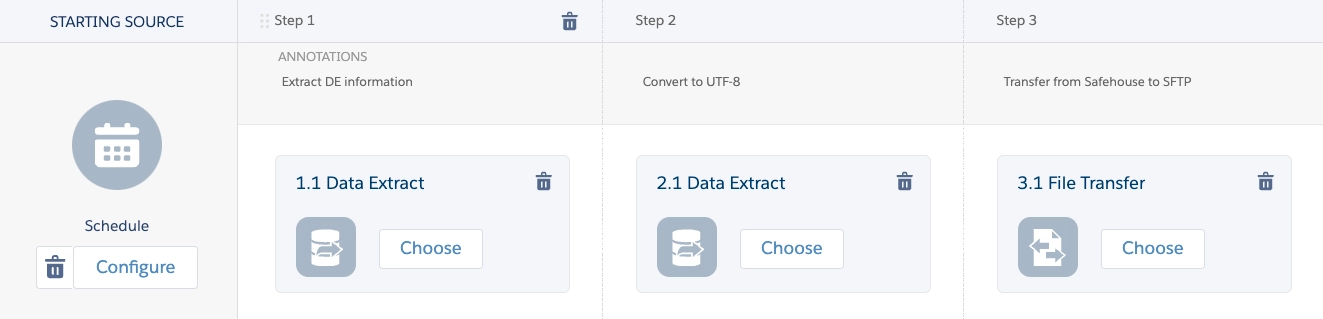
As stated in the steps’ annotations, we will extract, convert and transfer the Data Extension, and depending on the amount of information in the table this may take around 3-5 minutes or less to run.
Validating the technical side:
- Data Extract
- PROPERTIES
- Confirm the naming convention in File Naming Pattern is using the expected file extension: .csv
- Sample name: campaign_extract_%%Year%%-%%Month%%-%%Day%%.csv
- This same file name is used in the next activities
- Copy the entire name —including the .csv extension
- For the Extract Type select Data Extension Extract
- Confirm the naming convention in File Naming Pattern is using the expected file extension: .csv
- CONFIGURATION
- Confirm the Column Delimiter
- For DECustomer Key copy and paste your Data Extension’s External Key
- Check the Has Column Headers box
- SUMMARY
- Verify all information is correct before setting up the below activity
- PROPERTIES
- Data Extract [UTF-8]
- PROPERTIES
- Confirm the naming convention in File Naming Pattern is exactly the same as the activity above
- For the Extract Type select one of the options below:
- Custom UTF-16 to UTF-8 Encoding
- Custom UTF-8 Encoding
- You can request the Salesforce Support Team to enable these Extract Conversion Types in your account via a Case.
- CONFIGURATION
- Select your SFTP Folder to store the extract
- For instance: Export/Campaign/Backup
- For your Input File Location select Safehouse
- Select your SFTP Folder to store the extract
- SUMMARY
- Verify all information is correct before setting up the below activity
- Verify all information is correct before setting up the below activity
- PROPERTIES
- File Transfer
- PROPERTIES
- For your File Action select Move a File From Safehouse
- SFMC’s Safehouse is a secure file storage location.
- For your File Action select Move a File From Safehouse
- CONFIGURATION
- Confirm the naming convention in File Naming Pattern is exactly the same as the activities above
- In Destination choose the target folder/system where your file will be placed
- SUMMARY
- Verify all information is correct before running a first iteration of your automated process
- PROPERTIES
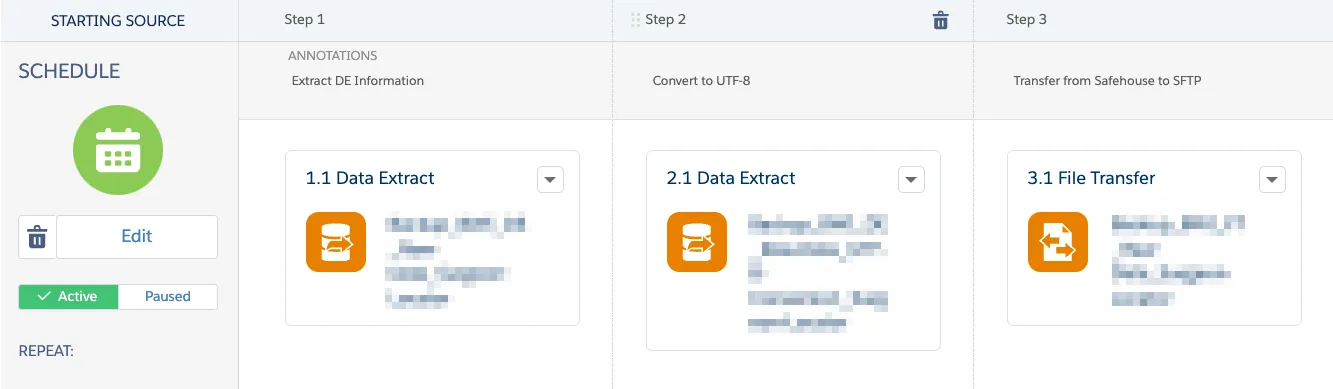
Up to this point your automation should be looking similar to the one below:
4) 🔎 Monitor
After setting up your automation flow don’t forget to include in the Activity Tab your email address for Runtime Error or Skipped Run notifications in case the process breaks down. Regularly monitor if the automation is running at the expected time, if it is taking longer than usual, and in case an activity fails, you can review the details the system provides.
To Sum-Up
Evidently for a project the business would have their own custom processes to back up their information, however, if you are implementing or a stakeholder is feeling courageous to get their hands dirty in the platform, and need to frequently save a copy of a table or two, you can definitely leverage a simple automation that will save you a lot of time.